My QR Code Looks Blurry on My Flyer: How to Download the Highest Quality PNG for Print
You’ve designed the perfect flyer, your marketing copy is brilliant, and you've added a QR code to drive traffic. But when the printed copy arrives, the code is blurry, pixelated, or simply **won’t scan**. This is a frustratingly common problem, but it has a simple technical solution: using the correct file format and resolution.
Quick Fix: Blurry QR codes are almost always caused by downloading the code as a **low-resolution JPEG** or a **small PNG** that is too tiny for the printing process. You must download the code as an **SVG (Scalable Vector Graphic)** or a high-resolution PNG (at least 300 DPI).
Why Does Your QR Code Look Blurry in Print?
The problem lies in the fundamental difference between **raster** graphics and **vector** graphics, and the concept of resolution.
1. The Pixelation Problem (Raster Files)
When you download a file like a JPEG or a standard PNG, you are downloading a **raster** image. Raster images are made up of a fixed number of tiny colored squares called pixels. If you create a QR code that is 300 pixels wide, it will look sharp on your screen. However, if you try to print that 300-pixel code on a flyer that requires a 3-inch width, the printer is forced to stretch those fixed pixels, resulting in the fuzzy, jagged appearance known as **pixelation**.
2. Resolution and DPI (Dots Per Inch)
Professional printing requires a high density of dots, typically **300 DPI (Dots Per Inch)**, to achieve sharp results. If you only provide a low-resolution file (like 72 DPI, which is standard for web images), the printer cannot render enough detail, leading to blurriness.
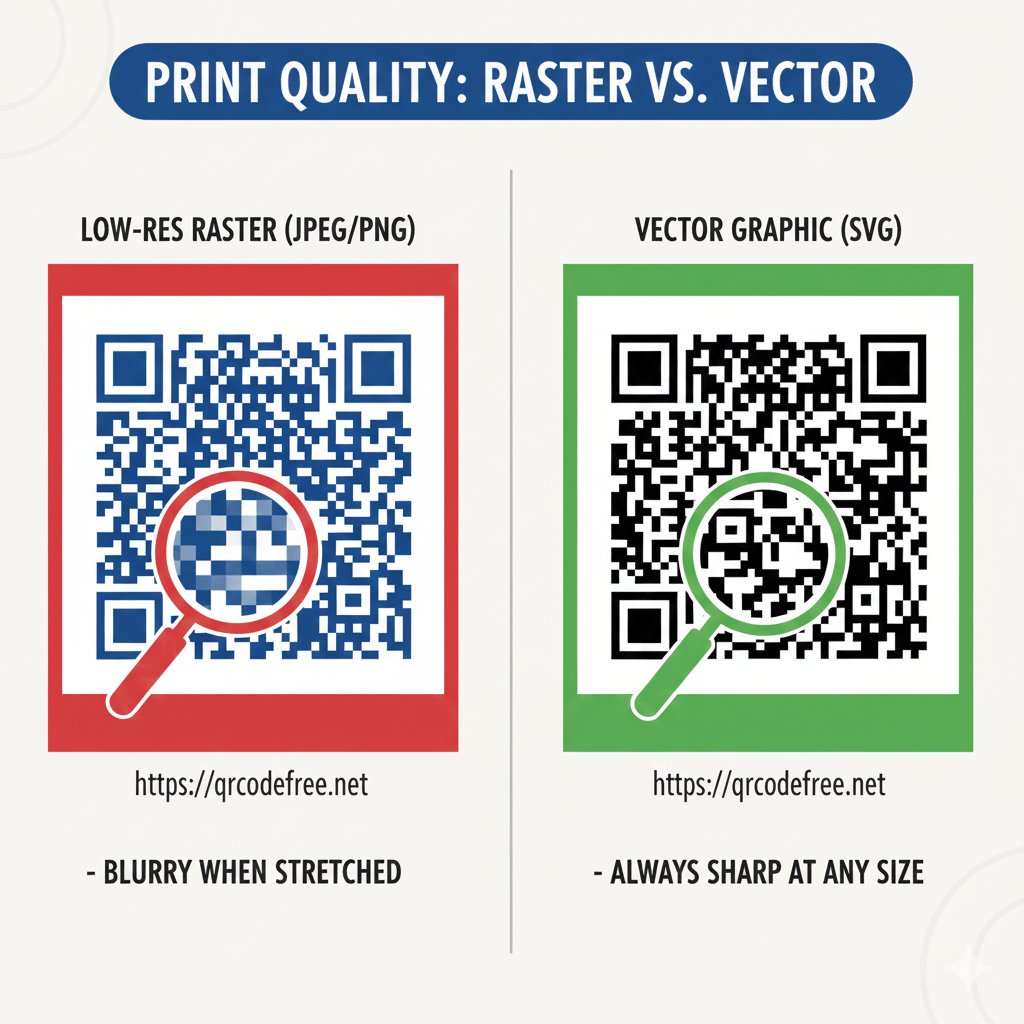
Raster files are resolution-dependent; stretching them causes blurring. Vector files maintain perfect clarity at any size.
The Solution: Always Download Vector (SVG) or High-Res PNG
To guarantee a crisp, scannable QR code on any printed material—from a small business card to a large poster—you need to use the right file type.
Option 1: The Gold Standard - SVG (Scalable Vector Graphic)
The **SVG** file format is the gold standard for print. Unlike raster images, SVGs use mathematical equations (vectors) to define the code's pattern and geometry. This means you can scale an SVG code to the size of a billboard or shrink it down to a thumbnail, and it will **never lose quality or become pixelated**. The lines will always be razor-sharp.
Pro Tip: When using professional printing services (like a local print shop or commercial vendor), they will almost always prefer the **SVG format** for guaranteed quality.
Option 2: High-Resolution PNG (300 DPI)
If your design software or printing company strictly requires a PNG, you must ensure it is downloaded at the correct resolution and size. When using a quality QR code generator (like ours), look for an option to set the resolution or download size. The PNG file you download should be:
- **A Minimum of 300 DPI** (Dots Per Inch)
- **At least 2000 x 2000 pixels** (even if the final print size is smaller).
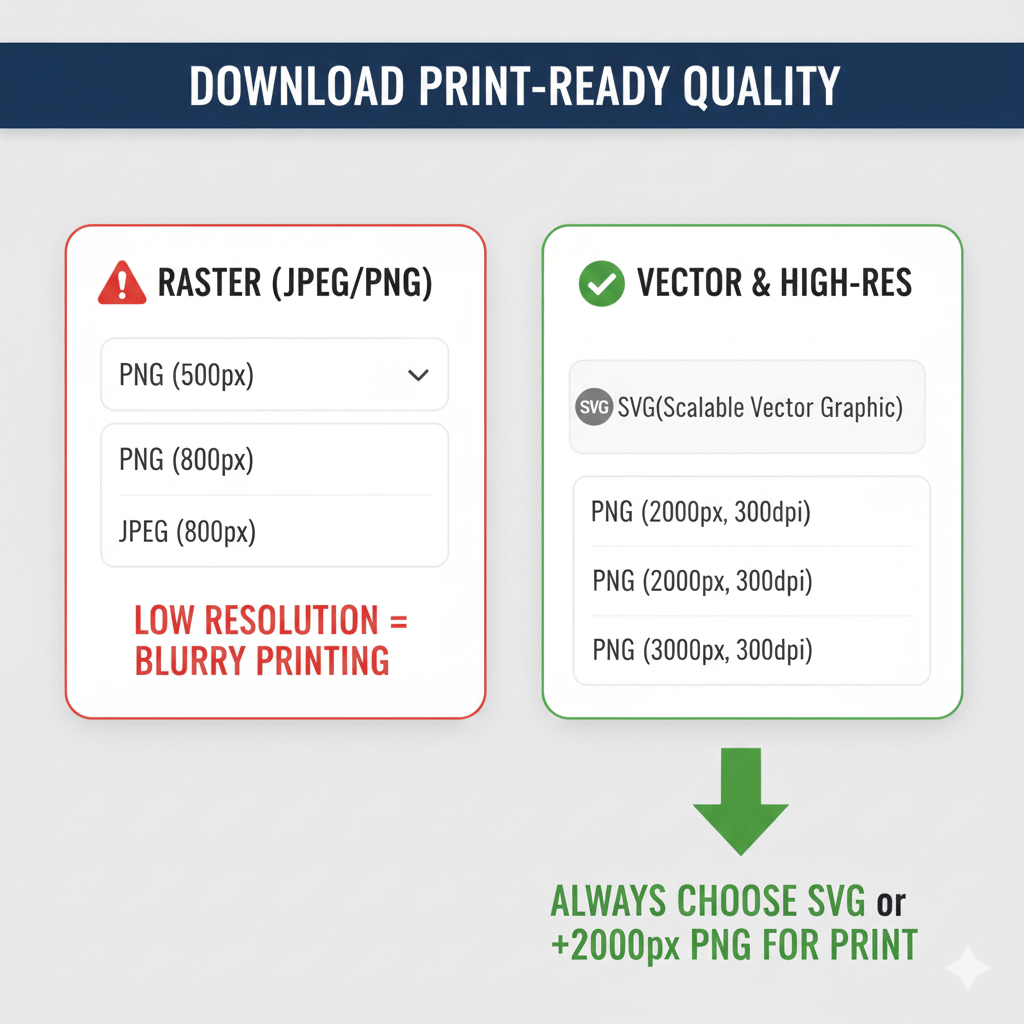
Always select the 'SVG' or highest resolution 'PNG' option available when preparing files for print.
Essential Checks Before Sending to Print
Beyond file format, a few design elements are critical for a code that scans perfectly every time, regardless of the printer or lighting conditions. These factors relate to basic QR code design best practices and the principle of the "Quiet Zone."
1. The Quiet Zone: The Unspoken Rule
The **Quiet Zone** is the clear, empty border that must surround your QR code. It acts as a visual buffer, telling the scanner app exactly where the code begins and ends, separating it from the rest of your flyer's busy design or text.
- **Requirement:** The border must be at least **four modules wide** (a module is the smallest square in the code).
- **Mistake:** Do not shrink the code so much that other design elements bleed into the white border. This is the **number one reason** scannable codes fail in print.
Contrast Warning: Never use light gray on white, or dark blue on black. For printing, the background should be **pure white** and the code itself should be **pure black** or a very dark color for reliable scanning. Low contrast will make your code unreadable, even if the file quality is perfect.
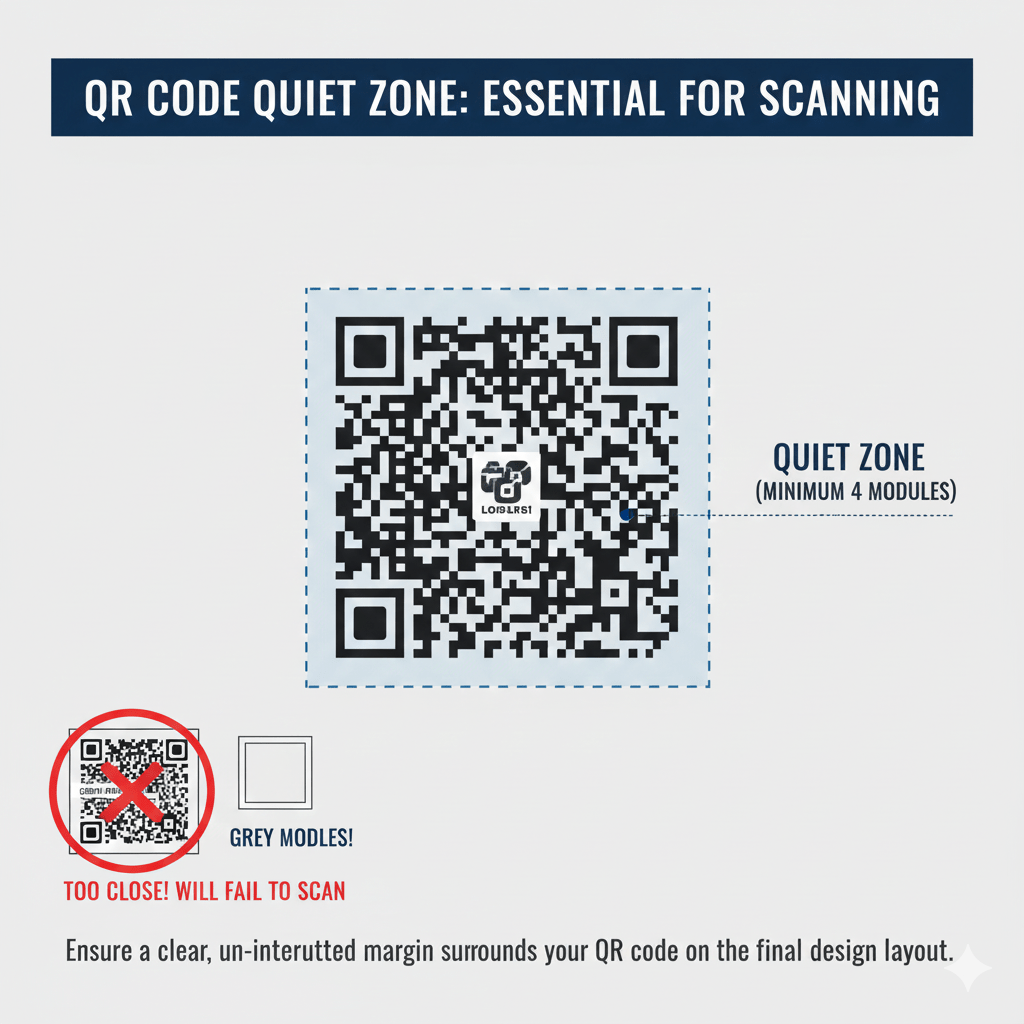
Ensure a clear, un-interrupted margin surrounds your QR code on the final design layout.
For maximum assurance, always print a single proof copy of your flyer or design first, using the same paper stock as the final run, and test the QR code with multiple phones and scanner apps before committing to a bulk order.